Table actions
Overview
Krateo 3.0.0 introduces an upgrade to the Table widget, enabling row-level common actions.
This feature allows you to define one or more table actions within the widget configuration. When table actions are configured, a customizable button is rendered for each action in every row of the table. Clicking a button triggers the corresponding action, which is dynamically influenced by the data exposed by that specific row.

What are table actions
Table actions allow you to attach one or more buttons to every row of a Table widget. Buttons are defined using the new tableActions property of the widget, which is set under widgetData. Each table action is associated to a global action defined using the actions property, with the same structure used in other widgets. For more information about actions, please visit this page.
To recap, each table action:
- is defined under
tableActions - references a global action defined under
actions - receives the current row data as payload
- can interpolate row values
How to reference row data
When a table action is clicked, the entire row is converted into a JSON payload, and each cell value can be referenced using the jq syntax with the .json keyword.
Here is an example of a row of table containing two columns (name and age):
columns:
  - valueKey: name
    title: Name
  - valueKey: age
    title: Age
data:
  - - valueKey: name
      kind: jsonSchemaType
      type: string
      stringValue: "Alice"
    - valueKey: age
      kind: jsonSchemaType
      type: integer
      numberValue: 30
If the table has table actions defined, when clicking a table action button the frontend logic receives:
{
  "name": "Alice",
  "age": 30
}
Using the jq syntax, each cell value of the row can be referenced using this format: ${ .json.[FIELD_NAME]}. For example, to reference the name value of this row, use ${ .json.name }.
Any cell value can be interpolated in this way, which makes row-level actions flexible.
These interpolated values can then be used to dynamically resolve a resourceRefId, navigation path, or REST payload parameter.
Identifying rows using hidden columns
A good way to identify rows is by using a unique identifier. In many cases, this identifier cannot be derived directly from the visible row data. A recommended approach is to create a hidden column that stores this value.
This way, the column containing the row identifier is not displayed in the UI, but its value remains available for use within the table action logic. Each row must have a unique value for this column, otherwise interpolations like ${ .json.rowId } will not work correctly.
To prevent a column from being rendered in the UI, use the hidden property.
Example with a hidden rowId column:
columns:
  - valueKey: name
    title: Name
  - valueKey: age
    title: Age
  - valueKey: rowId
    title: Row ID
    hidden: true
data:
  - - valueKey: name
      kind: jsonSchemaType
      type: string
      stringValue: "Alice"
    - valueKey: age
      kind: jsonSchemaType
      type: integer
      numberValue: 30
    - valueKey: rowId
      kind: jsonSchemaType
      type: string
      stringValue: row-1
Even though rowId is hidden, its value (row-1) can be accessed via ${ .json.rowId } and used in table actions.
Table actions definition
The tableActions property of the Table widget is defined under widgetData as an array of action bindings applied to every row of the table.
Each entry must specify a clickActionId, which references an existing global action. Optionally, you can customize how the button appears in the UI through the button property. This allows you to configure the button’s label, icon, backgroundColor, shape, size, and visual type. If no customization is provided, default button styling is applied.
Examples
Table with actions and static resources
Let's create a Table widget with two table actions for each row: one is an openModal action which opens a modal containing a customized markdown for the clicked row, and the other is a navigate action which redirects to a specific markdown resource for that row. To identify each row uniquely, we use a hidden rowId column.
We use the previously defined columns:
columns:
  - valueKey: name
    title: Name
  - valueKey: age
    title: Age
  - valueKey: rowId
    title: Row ID
    hidden: true
Next, define the two global actions:
actions:
  openModal:
    - id: open-modal-markdown
      type: openModal
      resourceRefId: ${ "example-markdown-" + .json.rowId }
      title: Default Modal Example
  navigate:
    - id: navigate-markdown
      type: navigate
      path: ${ "example-markdown-" + .json.rowId }
Here, the key point is the jq interpolation used in resourceRefId and path. At runtime, ${ .json.rowId } is replaced with the value of the clicked row (e.g., row-1).
The resourceRefId must point to an existing widget resource, while the path can point to a route. If the interpolated value does not match any existing resource or path, the action will not execute correctly.
Finally, define the row-level tableActions:
tableActions:
  - clickActionId: open-modal-markdown
    button:
      label: Open Modal
  - clickActionId: navigate-markdown
    button:
      label: Navigate
      type: default
Each row will now display two buttons. Clicking a button executes the corresponding action using the row's data, dynamically interpolating the rowId to access the correct resourceRefId or path.
Complete Table widget:
kind: Table
apiVersion: widgets.templates.krateo.io/v1beta1
metadata:
  name: example-table-actions
  namespace: krateo-system
spec:
  widgetData:
    actions:
      openModal:
        - id: open-modal-markdown
          type: openModal
          resourceRefId: ${ "example-markdown-" + .json.rowId }
          title: Default Modal Example
      navigate:
        - id: navigate-markdown
          type: navigate
          path: ${ "example-markdown-" + .json.rowId }
    allowedResources: [barcharts, buttons, filters, flowcharts, linecharts, markdowns, paragraphs, piecharts, yamlviewers]
    pageSize: 5
    columns:
      - valueKey: name
        title: Name
      - valueKey: age
        title: Age
      - valueKey: rowId
        title: Row ID
        hidden: true
    data:
      - - valueKey: name
          kind: jsonSchemaType
          type: string
          stringValue: "Alice"
        - valueKey: age
          kind: jsonSchemaType
          type: integer
          numberValue: 30
        - valueKey: rowId
          kind: jsonSchemaType
          type: string
          stringValue: row-1
      - - valueKey: name
          kind: jsonSchemaType
          type: string
          stringValue: "Bob"
        - valueKey: age
          kind: jsonSchemaType
          type: integer
          numberValue: 42
        - valueKey: rowId
          kind: jsonSchemaType
          type: string
          stringValue: row-2
    tableActions:
      - clickActionId: open-modal-markdown
        button:
          label: Open modal
      - clickActionId: navigate-markdown
        button:
          label: Navigate
          type: default
  resourcesRefs:
    items:
      - id: example-markdown-row-1
        apiVersion: widgets.templates.krateo.io/v1beta1
        name: example-markdown-row-1
        namespace: krateo-system
        resource: markdowns
        verb: GET
      - id: example-markdown-row-2
        apiVersion: widgets.templates.krateo.io/v1beta1
        name: example-markdown-row-2
        namespace: krateo-system
        resource: markdowns
        verb: GET
In this example, the Table widget shows two rows, each with a hidden rowId (row-1 and row-2). The rowId is used to link row-specific actions.
Two global actions are defined: openModal opens a modal showing content for the clicked row (using resourceRefId: example-markdown-${ .json.rowId }), and navigate redirects to a markdown path (path: example-markdown-${ .json.rowId }).
The tableActions section renders buttons for each row: one triggers the modal, and the other triggers the navigation. When a user clicks a button, the action uses the row’s data and passes it to the frontend action logic, which interpolates the value into the action definition. The interpolated value (e.g., example-markdown-row-1 for the first row) is used to retrieve a resource, defined in resourceRefId, which in this case is a specific Markdown widget. If the resource or path does not exist, the action will fail, so defining valid resources in resourcesRefs is essential.
This should be the final result once the resource is applied:

And this should be the content of the modal displayed when clicking on the first table action of the first row:
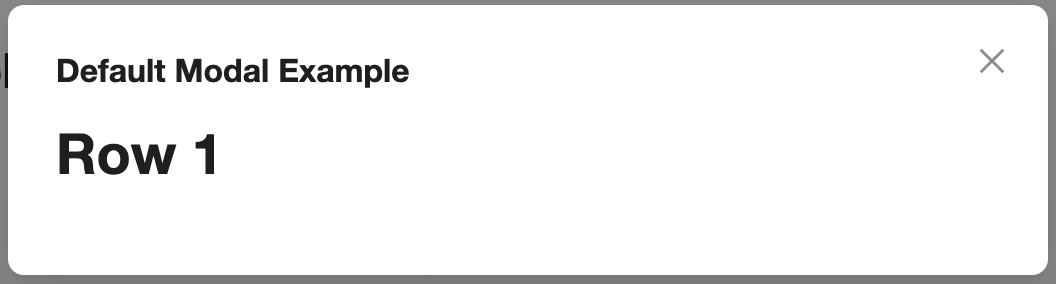
Table with actions and dynamic resources
Let's expand the previous example by further templating the Table widget. Instead of referencing static resources (such as example-markdown-row-1 and example-markdown-row-2), we want to dynamically retrieve them using a common iterator. In this case, we want to fetch all Markdown widgets whose name starts with the prefix example-markdown.
To achieve this, we combine:
- a
RESTAction, which retrieves the resources - the
resourcesRefsTemplateproperty, which iterates over the retrieved resources and dynamically populates theresourcesRefssection
First, create a RESTAction that fetches all Markdown widgets in the namespace and filters them by name:
apiVersion: templates.krateo.io/v1
kind: RESTAction
metadata:
  name: get-example-markdowns
  namespace: krateo-system
spec:
  api:
    - name: markdowns
      path: /apis/widgets.templates.krateo.io/v1beta1/namespaces/krateo-system/markdowns
  filter: >
    {
      markdowns:
        (.markdowns.items
        | map(select(.metadata.name | startswith("example-markdown"))))
    }
This RESTAction must be referenced using the apiRef property:
apiRef:
  name: get-example-markdowns
  namespace: krateo-system
Next, update the resourcesRefs and resourcesRefsTemplate to iterate over the fetched resources:
resourcesRefs:
  items: []
resourcesRefsTemplate:
  - iterator: ${ .markdowns }
    template:
      id: ${ .metadata.name }
      apiVersion: ${ .apiVersion }
      resource: markdowns
      namespace: ${ .metadata.namespace }
      name: ${ .metadata.name }
      verb: GET
This configuration dynamically creates one item of resourcesRefs for each filtered Markdown resource.
Updated complete example:
kind: Table
apiVersion: widgets.templates.krateo.io/v1beta1
metadata:
  name: example-table-actions-dynamic
  namespace: krateo-system
spec:
  widgetData:
    apiRef:
      name: get-example-markdowns
      namespace: krateo-system
    actions:
      openModal:
        - id: open-modal-markdown
          type: openModal
          resourceRefId: ${ "example-markdown-" + .json.rowId }
          title: Default Modal Example
      navigate:
        - id: navigate-markdown
          type: navigate
          path: ${ "example-markdown-" + .json.rowId }
    allowedResources: [barcharts, buttons, filters, flowcharts, linecharts, markdowns, paragraphs, piecharts, yamlviewers]
    pageSize: 5
    columns:
      - valueKey: name
        title: Name
      - valueKey: age
        title: Age
      - valueKey: rowId
        title: Row ID
        hidden: true
    data:
      - - valueKey: name
          kind: jsonSchemaType
          type: string
          stringValue: "Alice"
        - valueKey: age
          kind: jsonSchemaType
          type: integer
          numberValue: 30
        - valueKey: rowId
          kind: jsonSchemaType
          type: string
          stringValue: row-1
      - - valueKey: name
          kind: jsonSchemaType
          type: string
          stringValue: "Bob"
        - valueKey: age
          kind: jsonSchemaType
          type: integer
          numberValue: 42
        - valueKey: rowId
          kind: jsonSchemaType
          type: string
          stringValue: row-2
    tableActions:
      - clickActionId: open-modal-markdown
        button:
          label: Open modal
      - clickActionId: navigate-markdown
        button:
          label: Navigate
          type: default
  resourcesRefs:
    items: []
  resourcesRefsTemplate:
    - iterator: ${ .markdowns }
      template:
        id: ${ .metadata.name }
        apiVersion: ${ .apiVersion }
        resource: markdowns
        namespace: ${ .metadata.namespace }
        name: ${ .metadata.name }
        verb: GET
---
apiVersion: templates.krateo.io/v1
kind: RESTAction
metadata:
  name: get-example-markdowns
  namespace: krateo-system
spec:
  api:
    - name: markdowns
      path: /apis/widgets.templates.krateo.io/v1beta1/namespaces/krateo-system/markdowns
  filter: >
    {
      markdowns:
        (.markdowns.items
        | map(select(.metadata.name | startswith("example-markdown"))))
    }
In this example:
- the widget references a
RESTActionnamedget-example-markdownsviaapiRef - the
RESTActionretrieves allMarkdownresources in the namespace and filters them by prefix - the filter returns an object containing a
markdownsarray resourcesRefsTemplateiterates over that array- for each matching
Markdownresource, an item is dynamically generated inresourcesRefs