Theme customization
Overview
Krateo 3.0.0 introduces a new Theme widget to enable dynamic customization of the application's look and feel.
By default, the application uses a hardcoded Krateo default theme. If a specific environment variable, called THEME, is provided during installation, the application will instead fetch and apply a custom Theme widget resource to a specific namespace.
This mechanism allows centralized theme management and runtime customization without modifying the frontend code. Additionally, this feature is useful to configure a customized logo for the application.
Integration with Ant Design
The application uses Ant Design as the underlying design system.
The Theme widget maps its configuration to a frontend logic which is a combination of:
- Ant Design theme algorithms to define the base mode (dark vs light)
- Ant Design global tokens to specify design elements, such as colors, etc.
- Custom CSS variables for layout elements such as sidebar and menu
For more details about theme tokens and algorithms, refer to the official Ant Design documentation.
Default Behavior
If the THEME environment variable is not provided when installing Krateo, the application uses the built-in Krateo default theme.
The default theme includes:
- Light mode
- Default Krateo logo
- Default Ant Design algorithm
- Custom sidebar and menu styling
- Default primary color and typography
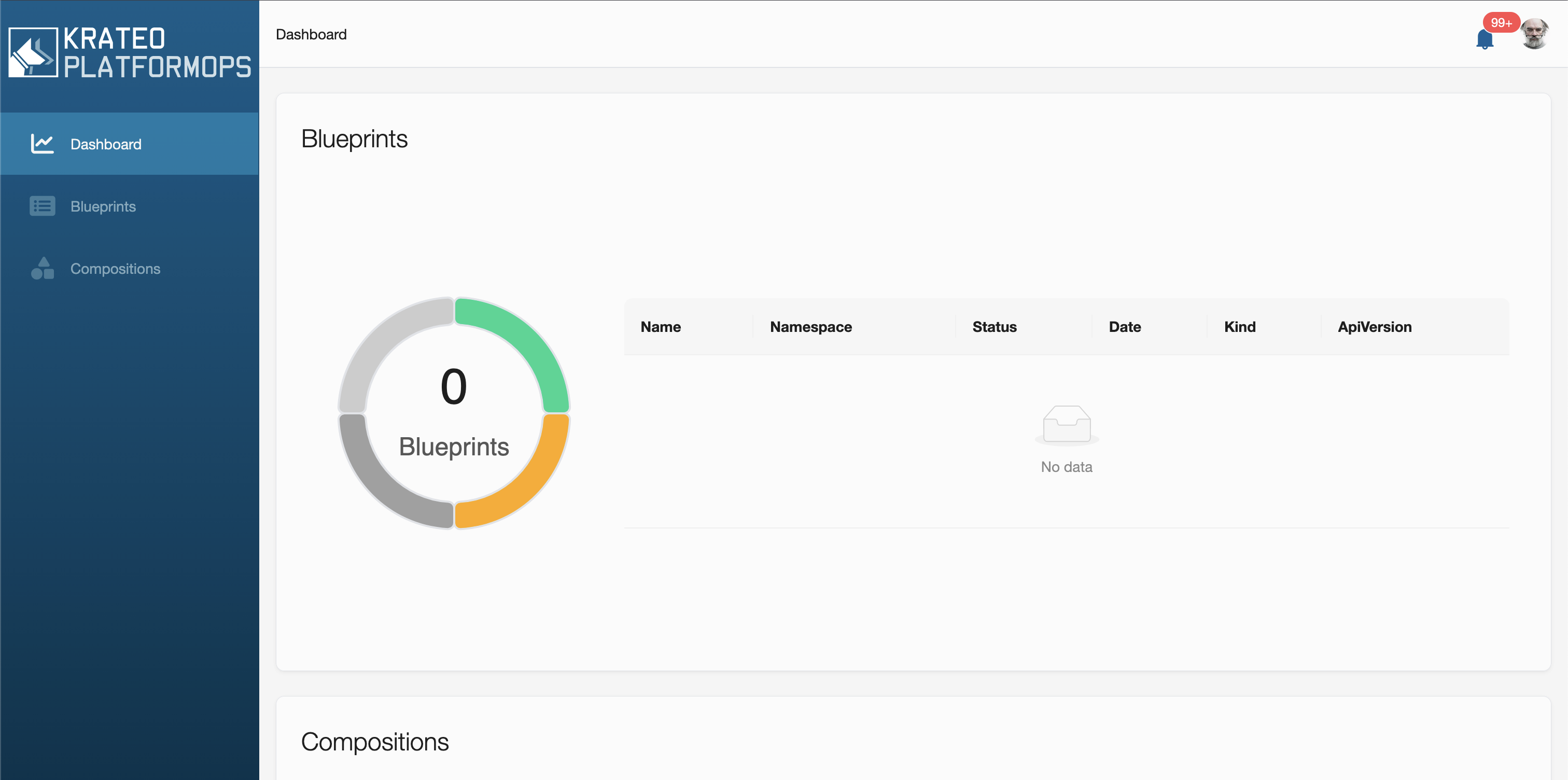
Default Theme (YAML)
kind: Theme
apiVersion: widgets.templates.krateo.io/v1beta1
metadata:
  name: default-theme
  namespace: krateo-system
spec:
  widgetData:
    custom:
      menu:
        itemColor: '#ffffff80'
        itemHoverColor: '#f5f5f5'
        itemSelectedBg: '#11b2e266'
        itemSelectedColor: '#f5f5f5'
      sidebar:
        bgGradientEnd: '#002f46'
        bgGradientStart: '#005d8b'
    logo:
      url: https://raw.githubusercontent.com/krateoplatformops/frontend/fa5a15811c4caea3b7044135375e30b03c3df74f/src/assets/images/logo_big.svg
    mode: light
    token:
      colorBgContainer: '#FBFBFB'
      colorBgLayout: '#f5f5f5'
      colorBorder: '#E1E3E8'
      colorPrimary: '#05629A'
      fontFamily: 'Roboto,"Helvetica Neue",Arial,"Noto Sans",sans-serif'
  resourcesRefs:
    items: []
This configuration is embedded directly in the application as a fallback.
Theme Properties
Logo Customization
It is possible to define a custom logo using the logo property.
The logo can be provided either as:
- Inline SVG content
- External image URL
If no logo is provided, the default Krateo logo is used.
Theme Mode
The mode property defines the base theme algorithm.
Supported values:
lightdark
The selected mode automatically maps to the corresponding Ant Design algorithm. If no algorithm is specified, the default value is set to light.
Token Customization
The token property allows overriding Ant Design global design tokens, such as:
- Colors
- Typography
- Layout styling
If a token is not explicitly overridden, the system falls back to Krateo or Ant Design default values.
Custom Styling
The custom section allows defining additional layout styling such as:
- Sidebar gradients
- Menu colors
- Selected/hover states
As with tokens, missing values automatically fall back to Krateo defaults.
Example: dark mode with customized SVG logo
kind: Theme
apiVersion: widgets.templates.krateo.io/v1beta1
metadata:
  name: dark-theme
  namespace: krateo-system
spec:
  widgetData:
    logo:
      svg:
        <svg width="100" height="100" xmlns="http://www.w3.org/2000/svg">
          <circle cx="50" cy="50" r="40" stroke="black" stroke-width="3" fill="blue" />
        </svg>
    mode: dark
    token:
      colorPrimary: '#05629A'
      fontFamily: 'Roboto,"Helvetica Neue",Arial,"Noto Sans",sans-serif'
  resourcesRefs:
    items: []
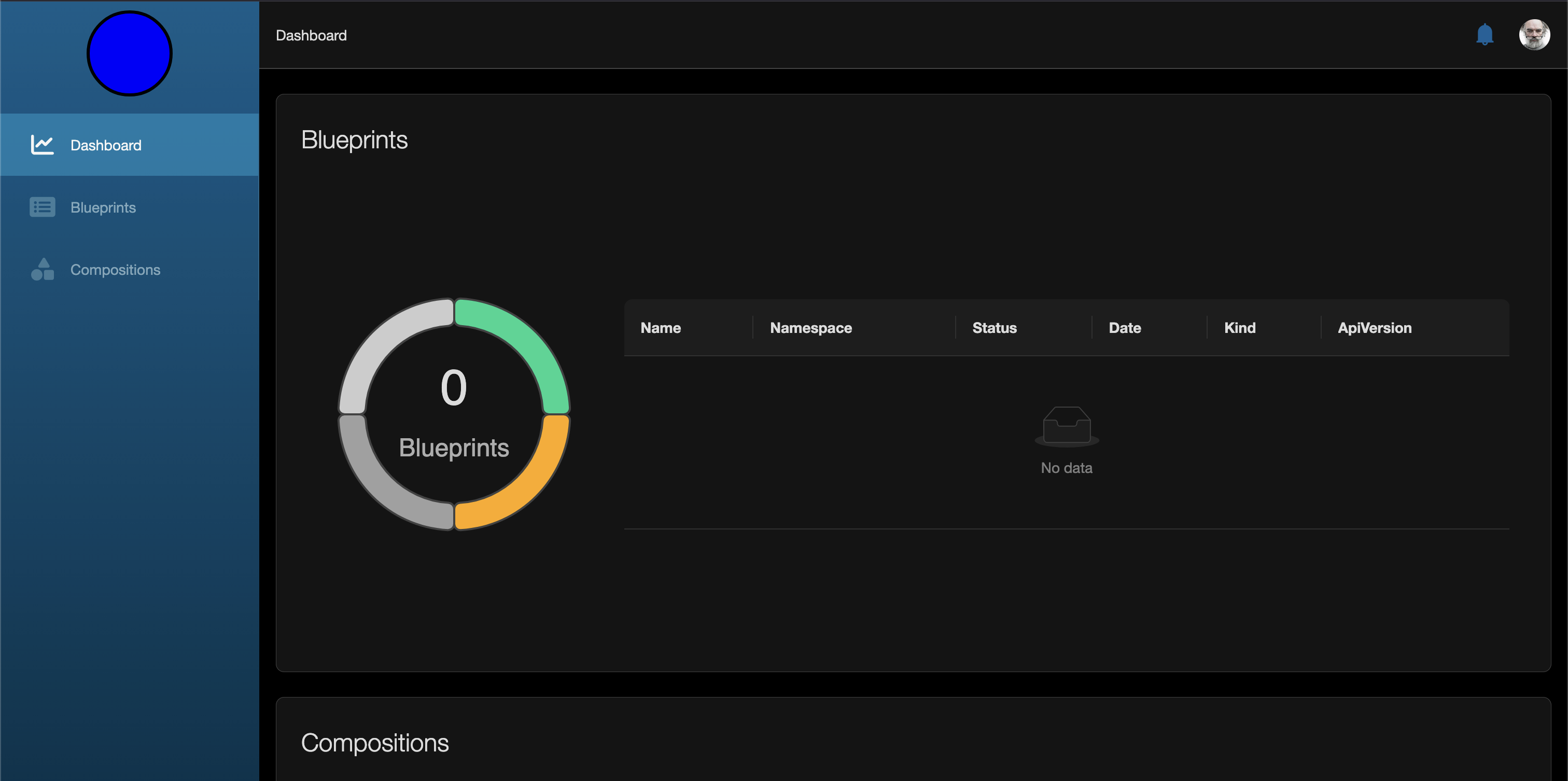
Enabling a Custom Theme
To create and use a custom theme, you must first define a Theme widget resource, such as the one shown in the previous section.
Once created, this resource must be referenced through an environment variable named THEME, which is evaluated during the installation process.
For more information about the Krateo installation process, refer to the Install Krateo PlatformOps section of Krateo documentation.
The association between the application and the Theme widget can be configured in two ways.
Setting the variable during installation
During installation, you can define the THEME environment variable so that it points to the newly created Theme widget resource.
Example:
--set krateoplatformops.frontend.config.THEME=/call?resource=themes&apiVersion=widgets.templates.krateo.io/v1beta1&name=dark-theme&namespace=krateo-system
If the THEME variable is defined and points to a valid Theme widget, the application will fetch the widget, validate it and dynamically apply the customized theme at runtime.
If the fetch fails or the resource is invalid, the system safely falls back to the default Krateo theme.
Using a Profile Override
In Krateo 3.0.0, themes are configured during installation using krateoctl with profile overrides. Create a krateo-overrides.dark-theme.yaml file with the theme configuration:
components:
  frontend:
    stepConfig:
      install-frontend:
        with:
          values:
            config:
              THEME: "/call?resource=themes&apiVersion=widgets.templates.krateo.io/v1beta1&name=dark-theme&namespace=krateo-system"
Then apply the profile during installation with krateoctl install apply:
krateoctl install apply --version 3.0.0 --type loadbalancer --profile dark-theme
The --profile dark-theme flag tells krateoctl to look for krateo-overrides.dark-theme.yaml. When using krateoctl, profiles can be:
- Remote (from the releases repository) — profiles defined in the remote repository
- Local (from your filesystem) — profiles stored in your local directory, useful for custom or environment-specific configurations
If a profile exists in both locations, the remote version takes precedence, but you can override it with a local file. This is useful for local development or testing before committing changes to the releases repository.
The --profile dark-theme persists across upgrades. Include it in future upgrades or it reverts to defaults. Use plan before apply to preview changes.
See Profile Configuration for full details.
For more on local overrides and the krateoctl installation workflow, refer to the krateoctl install and upgrade guide.